Writing
GBA Assembly — 8. Your first mini-game
Move a square to a target and create a win condition. Understand rectangle overlap, game state and restarting with the Start button.
A moving object is already interactive. To make it a small game, let's add an objective: move the white square to the green square. When they overlap, the bottom bar turns green and movement stops. Start begins another attempt.
This mini-game combines our earlier concepts without adding enemies, money, or towers. Use minijogo.s with the supporting files from the series package. Movement comes from the previous chapter.
Your route through this chapter
Before starting: the square from chapter 7 should move, stop at the edges, and leave no trail. Keep that working version.
- Save the complete
minijogo.sbeside the supporting files. Run the four build commands below and openminijogo.gba. - Map the D-pad and Start in mGBA. Move the white square onto the green target near the lower-right corner.
- Check three results together: the bottom bar turns green, movement stops, and Start begins a new attempt.
- Read the state and collision explanations, then repeat the round. Predict which value
game_stateholds while moving and after winning.
Checkpoint: you can win, restart, and move again. If the target looks correct but victory happens elsewhere after an edit, compare the drawing coordinates with the collision limits. Adding a countdown or defeat state later is optional; the supplied two-state game completes this chapter.
Hardware has no win condition
We create a RAM variable named game_state with two possible values:
| Value | Meaning chosen by the program | Behavior |
|---|---|---|
| 0 | Playing | The D-pad updates the position |
| 1 | Won | Position stays fixed until restarting |
These numbers do not configure a GBA component. They are a convention for our rules. The CPU executes comparisons and branches using them, and our drawing code selects the bar color.
This is the difference between a hardware register, such as DISPCNT, and game state, such as game_state. Both can be accessed through memory instructions, but only the former has a meaning defined by the circuitry.
Initialization and restart are program actions
Consult PUSH and POP for preserving lr and BL and BX for nested calls and returns.
new_game erases the square at its old position, places the player at (16,16), and sets state to zero. It runs during initialization and when we detect a new Start press. The entire screen is cleared only at boot; restarting only requires restoring the small area occupied by the player.
We use pressed, not keys, for restarting. Holding Start therefore does not call the routine every frame. We preserve the input variables during restart: clearing the previous reading while the button is still held would create an artificial new transition.
The file includes these two rule routines:
<!-- source: en/minijogo.s#state -->new_game:
push {r4, lr}
mov r4, #0
bl paint_hero
ldr r0, =hero_x
mov r1, #16
str r1, [r0]
ldr r0, =hero_y
str r1, [r0]
ldr r0, =game_state
mov r1, #0
str r1, [r0]
pop {r4, lr}
bx lr
check_goal:
ldr r0, =hero_x
ldr r0, [r0]
cmp r0, #208
bxge lr
add r0, r0, #8
cmp r0, #200
bxle lr
ldr r0, =hero_y
ldr r0, [r0]
cmp r0, #128
bxge lr
add r0, r0, #8
cmp r0, #120
bxle lr
ldr r0, =game_state
mov r1, #1
str r1, [r0]
bx lr
new_game calls another routine with bl, so it must preserve its own return address. push {r4, lr} saves that address and the previous color; pop restores both. Without this, the routine could return to the wrong location.
Detecting contact between two areas
Each early return depends on CMP and TST and the GE and LE conditions.
Both player and target are eight by eight pixels. The target starts at (200,120), occupying X 200 through 207 and Y 120 through 127.
Four conditions must hold for overlap:
player X < 208
player X + 8 > 200
player Y < 128
player Y + 8 > 120
check_goal returns early if any condition fails. If they all pass, it stores 1 in game_state.
Merely touching edges without sharing any pixels does not count. At player X 192, the final pixel is 199, so the player still occupies no target pixels. At X 193, there is horizontal overlap.
We chose rectangle comparisons because they are simple and testable. We are not asking the video circuitry whether two images touched: we use numeric coordinates in RAM. In Mode 3, these squares are not even hardware sprites.
Letting rules control updates
To read blne, bne, and ldreq, combine the conditions with the corresponding base operation.
The mini-game loop is:
<!-- source: en/minijogo.s#game-loop -->main_loop:
bl wait_vblank
bl tick
bl read_keys
ldr r0, =pressed
ldr r1, [r0]
tst r1, #8
blne new_game
mov r4, #0
bl paint_hero
ldr r0, =game_state
ldr r1, [r0]
cmp r1, #0
bne render
bl update_position
bl check_goal
render:
mov r0, #200
mov r1, #120
mov r2, #8
mov r3, #8
ldr r4, =0x03e0
bl fill_rect
ldr r4, =0x7fff
bl paint_hero
mov r0, #8
mov r1, #156
mov r2, #224
mov r3, #4
ldr r4, =0x318c
ldr r5, =game_state
ldr r5, [r5]
cmp r5, #1
ldreq r4, =0x03e0
bl fill_rect
b main_loop
Input is still read after victory because we must accept Start. Movement and goal checking run only while game_state is zero. Drawing runs in both states.
The order matters. We erase the player at the old position, update the position, and check the objective. Then we redraw the target and player and select the status bar color. Restoring the target each frame prevents an erase from destroying part of it.
We can explain these rules without naming a hardware address: “if still playing, move; if the target was touched, win.” The rules use routines we already know how to connect to buttons and video. That separation will help when reading Tower Defense.
Playing a complete round
arm-none-eabi-as -mcpu=arm7tdmi -g -o minijogo.o minijogo.s
arm-none-eabi-ld -T gba.ld -o minijogo.elf minijogo.o
arm-none-eabi-objcopy -O binary minijogo.elf minijogo.gba
python3 rom.py minijogo.gba
Open minijogo.gba. Move toward the lower-right area until the player overlaps the green target. The bottom bar should change from gray to green. The D-pad should no longer move the player. Press Start: the player should return to the start and the bar should become gray.
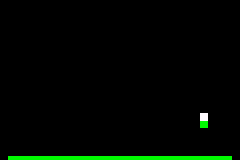
Try holding Start and a direction together after the first restart. Position should keep changing rather than returning to (16,16) every frame. This reveals why we distinguish a held button from a new press.
Change one rule at a time
First, move the target to (120,80). Update both its drawing coordinates and the four limits in check_goal. Changing only one side makes victory happen somewhere different from the image.
That duplication suggests an improvement: define constants for the target's X, Y, and size, then calculate limits from them. This is a small organizational step with a concrete purpose: prevent drawing and rules from disagreeing.
Next, add state 2 for defeat and a countdown variable in RAM. Decrease it once per update only while playing. At zero, change the state and show a red bar. Test winning before the deadline, losing when time expires, and restarting after both outcomes separately.
You do not need to finish these exercises to continue. The supplied version has only playing and won states. Next, we will review debugging and connect these foundations to the main tutorial.
Previous: moving a square. Next: debugging and the path to Tower Defense. Series index.